
On the web
Go to photos.google.com in any browser and sign in. This is the fastest route on a computer, and it is the one to use when you want to download originals rather than screenshots.
“Google pics” is the name almost everyone uses for the photo library that syncs from their phone — the app itself is called Google Photos. This page covers the two things people are usually after: getting back to your own pictures on whatever device you are holding, and doing real editing on one once you have it. The first half is a plain guide. The second half is an AI layer editor that splits any photo into transparent, movable layers.
Free to try · No install · Works on phones and desktop
Layer editor
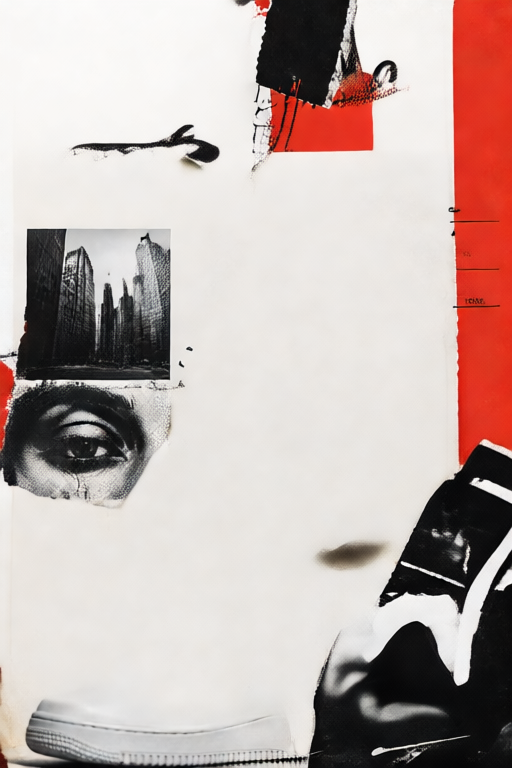
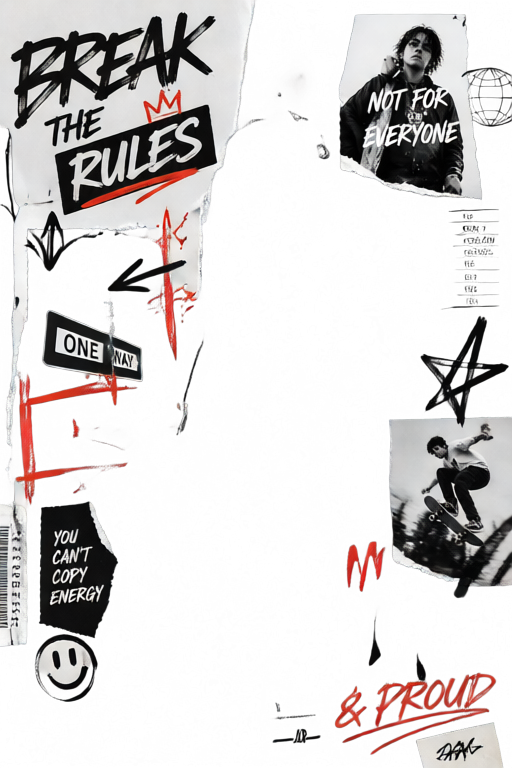
This is the editor itself, not a preview — a sample image is already loaded so you can see what layered output looks like. Replace it with a picture downloaded from your own library and the AI separates that one instead. Export a layered PSD, a transparent PNG, or a ZIP of every layer.

Generated 3 layers.
3 generated. Selected L1.
Nothing here connects to your Google Account. You choose a file from your device; the editor never reaches into your library.
Quick answer
Every photo that has backed up from your phone lives in one place: the Google Photos library attached to your Google Account. There is no separate “Google Pics” product — that is just the shorthand people type. Once you are signed in to the right account, the same library shows up everywhere, because it is one library with several front doors.
If you have more than one Google Account — a personal one and a work or school one — that is the single most common reason a photo seems to have vanished. The picture is not gone; you are looking at a different account's library.
Go to photos.google.com in any browser and sign in. This is the fastest route on a computer, and it is the one to use when you want to download originals rather than screenshots.
Open the Google Photos app. On most Android phones it is preinstalled and already syncing; on an iPhone you install it and turn on Back up & sync. Your Google pics on phone and on the web are the same library, so a delete in one place is a delete in both.
Signed in to your account, a search for your own images will surface your library alongside public results. Handy when you half-remember a photo and do not want to scroll a year of camera roll.
Opens photos.google.com in a new tab. Nothing on this page reads your library — you sign in there, download what you want, and bring the file back here if you plan to edit it.
Open Google PhotosThe login is just your normal Google Account sign-in; there is no separate password. If sign-in loops, switch accounts from the avatar in the top-right corner rather than resetting anything.
Terminology
In practice, yes. Google Photos is the product name; “google pics”, “google pic”, “google photo” and “google pictures” are what people actually type into a search box. They all point at the same thing — the library of images backed up to your account, plus the app and website used to browse it.
It is worth separating that from two neighbours that get mixed up with it. Google Drive can hold image files too, but it treats them as documents in folders, with no faces, dates or places layered on top. And Google Images is a search engine over the public web — other people's pictures, not yours. If a page promises your library and asks for a password anywhere other than a Google sign-in screen, close it.
The photos and videos backed up from your devices to your own account. Private by default, organised by date, face and location, and searchable in plain language.
A public index of pictures published on the open web. Useful for finding a reference; not a place your camera roll appears, and not a source of files you automatically have the right to reuse.
Finding things
The library indexes what is inside your pictures, not just their filenames, which is why searching it behaves more like asking a question than browsing a folder. These are the queries that reliably work.
“red bicycle”, “whiteboard”, “receipt”, “dog on a beach”. Objects, animals and scenes are recognised directly, so you rarely need to remember the date.
“Lisbon”, “last October”, “Christmas 2023”. Location comes from the photo's own metadata, so it works even for pictures you never labelled.
If face grouping is switched on in your region, you can name a group once and then search that name. It is off by default in some countries and can be turned off entirely.
Words photographed on a sign, a slide or a receipt are readable, so “invoice” or a street name will find a screenshot you would never have found by scrolling.
The AI side of Google pics keeps growing — natural-language queries, automatic albums, generative touch-ups, and more of Google Gemini showing up in the app over time. What none of that gives you is a layered file. Search finds the picture; the editing below is where you take it apart.
Editing
The built-in editor is genuinely good at the adjustments most photos need: exposure, colour, straightening, a crop, a blur behind the subject. It is deliberately a photo editor — every change lands on one flat image, and when you save, that is the picture.
The moment you want to move the subject without moving the background, drop in different sky, delete an object and keep what was behind it, or hand a designer something they can keep working on, a flat image is the wrong file. You need layers: separate transparent images stacked on top of each other, each editable on its own.
That is what the editor at the top of this page does. Download the photo from your library, drop it in, and an AI photo editor separates it into transparent RGBA layers — subject, background, and the details in between — which you can then move, hide, recolour or export as a layered PSD, a PNG or a PDF. No Photoshop licence, no install, and it runs the same in a phone browser.
Step by step
Five steps from a photo in your library to a layered file you can keep editing. Nothing to install, and no account needed to try it.
Open the picture at photos.google.com, use the three-dot menu and choose Download. Take the original rather than a screenshot — a screenshot throws away resolution and colour depth that the layer split would otherwise have used.
Drag the JPG, PNG or WebP onto the editor at the top of this page. Large camera files are fine; the image is read in the browser, so it appears immediately instead of crawling through an upload bar.
The model looks at what the photo contains and splits it into transparent RGBA layers — typically the main subject, secondary elements, and the background — instead of returning one flat cut-out. Each layer arrives with its own alpha channel.
Hide the background to get a clean cut-out, move the subject, swap in a new backdrop, or delete an object and reveal what the layer underneath was holding. Because the layers are separate images, none of this touches the pixels of the others.
Export a layered PSD to carry on in Photoshop, GIMP or Photopea, a transparent PNG of any single layer, or a PDF for print. The original stays untouched in your Google Photos library — you edited a downloaded copy.
Comparison
These are not competitors so much as two different stages. One tunes a photo; the other takes it apart. Knowing which job you have saves a lot of undoing.
| Google Photos editor | image-layer.com | |
|---|---|---|
| Where it runs | App and web, on your library | Any browser, on a file you drop in |
| Exposure, colour, crop | Yes, and quick to reach | Basic — this is not the focus |
| Separate transparent layers | No, edits land on one flat image | Yes, AI-generated RGBA layers |
| Move the subject only | No | Yes, the subject is its own layer |
| Export a layered PSD | No | Yes, plus PNG and PDF |
| Stores your library | Yes, that is the point | No, nothing is kept for you |
| Works on a phone | Yes, native app | Yes, same responsive page |
Fix the light in Google Photos. Bring the file here when the picture needs to come apart.
Troubleshooting
Missing photos are nearly always an account, a sync or a filter problem rather than lost data. Work through these before assuming anything is gone.
Tap the avatar in the top-right corner and read the email address. Personal and work accounts keep entirely separate libraries, and phones happily default to whichever was signed in last.
A photo only reaches the web once it has uploaded. Check the backup status at the top of the app — paused on mobile data, waiting for Wi-Fi, or stalled on low battery are the usual culprits.
Archived pictures leave the main grid but stay in search and in albums. Deleted ones sit in the bin for around 60 days before they go for good, so check there early rather than late.
When the account's storage runs out, new photos stop backing up while the ones already there stay put. That looks exactly like recent photos quietly failing to appear, because that is what it is.
FAQ
More tools
Cut the subject out as a transparent layer and preview it on white, dark or a colour backdrop before exporting a PNG.
Hit an exact pixel target for a listing, an upload form or a print, with the export rendered from the full-resolution source.
Drag a crop box, type precise dimensions, or trim a transparent layer down to its own visible bounds.
Download a picture from your library, drop it in here, and get transparent layers you can edit one at a time — then export a PSD, PNG or PDF.
image-layer.com is an independent image editing tool. It is not affiliated with, endorsed by, or connected to Google LLC. Google, Google Photos and Gemini are trademarks of Google LLC and are referred to on this page only to describe what the page helps you do. This site never connects to your Google Account and never asks you to sign in to one.